“But, sir,” I heard Google asking me when I was looking for how to create a modal for a web page. “Why don’t you just use this handy library these fine people had made? Oh, you’re looking for Bootstrap’s method? You can just use this built-in code with it and it’ll run! Ta-da!”
“No, Google,” I replied, exasperation obvious in my voice. “I don’t want to install another library just for this. I think it’s simple enough. No, Google, I don’t use Bootstrap, I just want to know how it implement its modal. No, Google, I’m not going to load Bootstrap’s entire package just for that!”
Realizing that it would be fruitless to hunt through dozens of Stack Overflow answers which are probably five years out of date anyway, I went on and bang my hands at the keyboard and came up with a decent no-fuss way to do modals (or fullscreen pop-ups, if you like) with pure vanilla HTML, CSS, and Javascript. If you’re reading this, I’m guessing you’re having the same problem as I do.
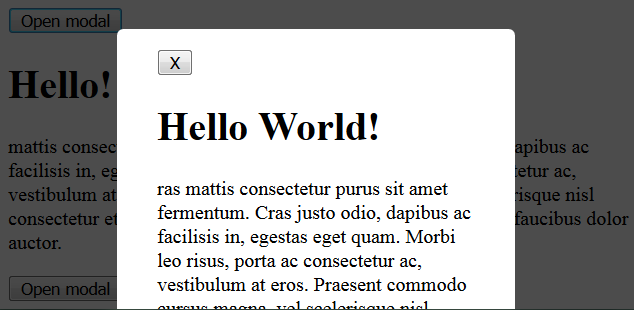
I’ve simplified it as much as possible, so you can learn from it instead of being confused as to what’s what. There’s a couple of things to note here.
Z-Index
The modal has to go above every other element on the page, or it’s going to make a big mess. That’s what z-index is for. Just keep it higher than everything else on the page. It doesn’t really have to go as high as the hundreds (Bootstrap reaches up to the thousand, by the way), but that’s a good way to make sure.
Fixed position
The .modal class is a container encompassing the entire screen with position: fixed. Normally, if you have an element with that position, it will “stick to the screen” even when you scroll the page. It’s the same principle here. But this time, with the modal open, you disable scrolling on body by setting its overflow to hidden. That’s what happening here:
document.getElementsByTagName("body")[0].style.overflow = "hidden"So with the modal open, you’re not actually scrolling through the body, you’re just scrolling through the modal! Setting it this way also allow you to open the modal anywhere on the page, and whatever on the modal will still display relative to the screen (as opposed to relative to the entire page). To create and position the modal’s content, you can just pretend it’s separate screen to the rest of the page. Here, I position the dialogue with margin as if it’s a regular old block.
Closing the Modal
You’d want some way to close the modal and return to the regular page, so always make sure there’s a way to close the modal inside the modal itself. Remember, you can’t interact with anything underneath the modal!
Here, you can close the modal by clicking the X button, but you can implement other ways to do it.
Transitioning
If you don’t mind your modal to just go bam visible and bam invisible with no transition animation, you can just remove all these lines in modal's style:
display: block;
width: 0;
height: 0;
overflow: hidden;
opacity: 0;
and replace it with just
display: noneThen when you open the modal, you can just set the display to block, removing all the parts where I change the height, width, overflow, and opacity.
But if you want a nice transition animation, you have to live with hack. Transition doesn’t work if you use display: none at all. The hack I use here is pretty simple and should work on most cases.
Basically, when the modal is closed, it still exists on the screen, but as an entity with 0 height and 0 width. As overflow is set to hidden, it won’t show anything outside of that nothingness, or in other words, it just won’t show anything. When the modal is opened, we “normalize” it so that its content are visible.
You can, of course, move the opacity transition to the dialogue instead of the entire modal. You can also add more transition like moving downwards or such. Just keep the size and overflow hack on the modal container.
I only use the base transition: attribute here, but in production you should have -webkit-transition: for compatibility’s sake.
If you’re using a library that uses a virtualDOM (e.g. React), you probably won’t be using display: block. You’d just inject directly into the DOM. In that case, you can just ignore the sizing-overflow hack and use transition directly.
Yeah, that’s pretty much it
I hope that’s helpful. If you need some more help with this, hit me up in the comments. Or google. Or ask in Stack Overflow. The internet is big and full of people who want to help! Also, check out this article over on CSS Tricks about things you should consider when styling it.
And hey, if you like games, or books, or random ramblings of an internet rando, follow this blog! Or at least give the post a like! Thanks for reading!